- Lightweight, only 12-15MB memory usage for one FHD monitor
- Bottom app launch panel with autohide, time, date, volume control, battery indicator, and restart/shutdown buttons.
- Button to prevent monitor standby when playing videos
- No X11 dependencies, Xwayland is not required
- No GTK or QT required
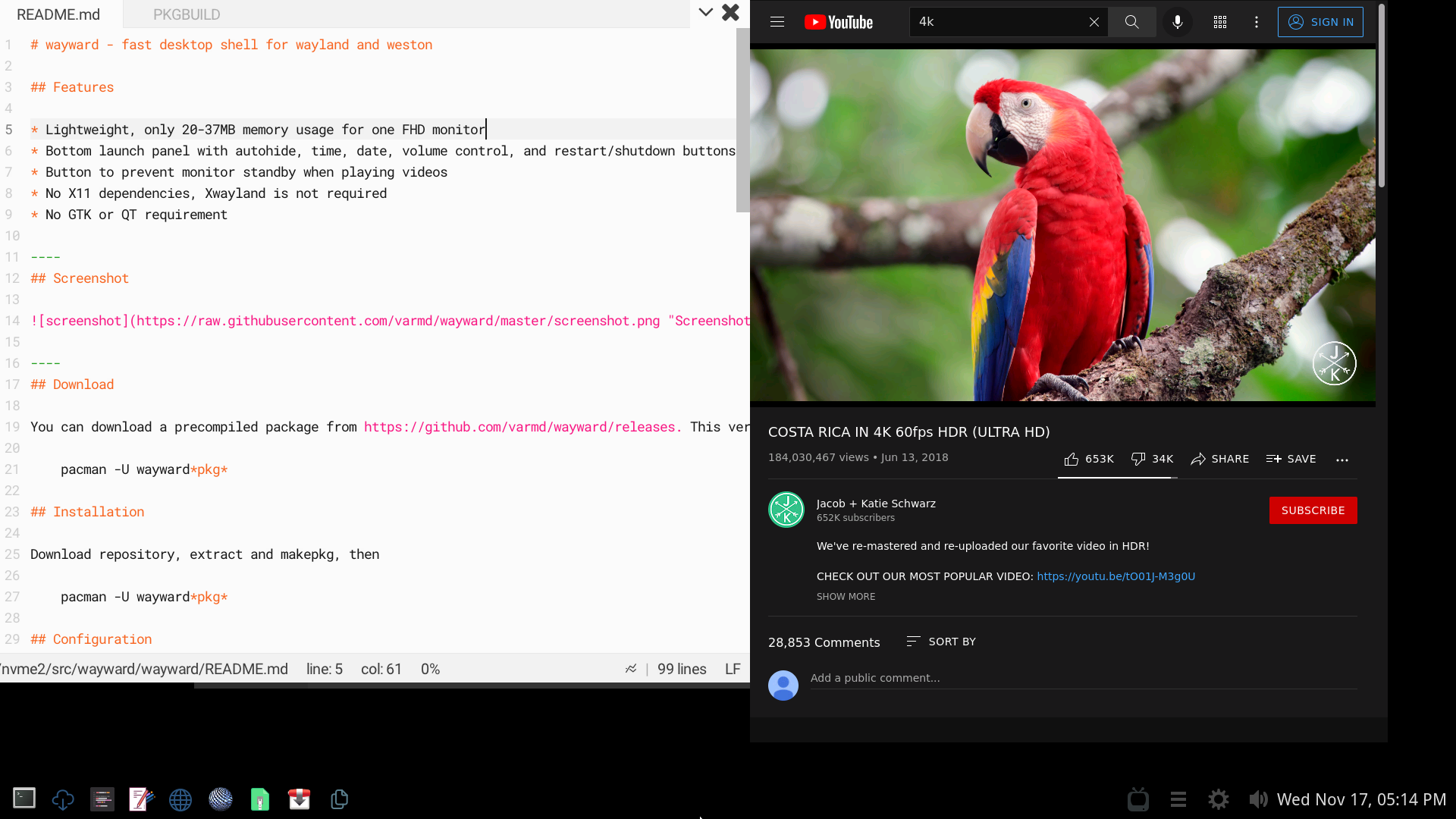
You can download a precompiled package from https://github.com/varmd/wayward/releases. This version is automatically built via Github Actions. cd to download folder and install
pacman -U wayward*pkg*
Download repository, extract and makepkg, then
pacman -U wayward*pkg*
Add weston to ~/.bash_profile or /etc/profile.d/weston.sh
echo "weston" >> ~/.bash_profile
Or
echo "weston" > /etc/profile.d/weston.sh
Wayward installs its own configuration for weston in /etc/xdg/weston/weston.ini so rename or remove any existing weston configuration - e.g at ~/.config/weston.ini. Relogin.
For shutdown and reboot icons to work install sudo and add to /etc/sudoers
yourusername ALL = NOPASSWD: /usr/bin/systemctl poweroff
yourusername ALL = NOPASSWD: /usr/bin/systemctl reboot
Requirements
- wayland
- ttf-droid
- cairo
- sudo
Due to delays with Arch Linux major weston releases, wayward PKGBUILD now also includes weston. Weston compilation options can be changed by editing weston/PKGBUILD
Super + a- See list of open applications. Use cursor or mouse to select. Press q to close an open app, right click to close an open appSuper + z- See list of open applications except minimized applications.Super + e- Open app panel. Use mouse or Tab, cursor keys <- -> to navigateVolume mute- Mute volumeVolume up- Volume upVolume down- Volume downSuper + Shift + T- Launch wayward-terminalBrowser key- Launch browserSuper + Ctrl + Alt + s- ShutdownSuper + Ctrl + Alt + r- Restart
Edit weston.ini and add hide-apps to the shell section.
hide-apps=mpv,zathura,file-roller
To hide apps from /usr/share/applications edit weston.ini and add the following to the shell section.
hide-all-apps=true
Since 1.4.0 it is possible to control monitor brightness with ddccontrol.
First install ddccontrol and glib2, and test to see if ddccontrol is working with your monitor.
Then add the following to weston.ini, where example is the number from /dev/i2c-number
in the output of ddccontrol -p. Brightness can then be changed from the app panel.
enable-brightness-ddc=true
ddc-i2c-number=example
This feature is currently limited to desktops with a single monitor.
Since 1.4.0 it is possible to control laptop brightness with brightnessctl.
First install brightnessctl, and configure it to work with your laptop.
Then add the following to weston.ini, where example is the laptop backlight device name from brightnessctl info
enable-brightness-ctl=true
brightnessctl-device=example
Wallpapers are changed from weston.ini. See weston.ini documentation - https://www.mankier.com/5/weston.ini#Shell_Section-background-image
To hide the sound control edit weston.ini and add the following to the shell section.
disable-sound-icons=true
To disable auto-hide edit weston.ini and add the following to the shell section.
enable-autohide=false
To change the default icon size edit weston.ini and add the following to the shell section. Icon sizes can be between 32 and 64.
icon-size=new-size
Since 1.2.5 it is now possible to set numeric, up to six digit, pincodes for the lock screen. Pincodes for now are only entered with keyboard. Use Enter to confirm pincode, Backspace to erase entered pincode. To set a pincode run as root wayward-set-pincode, and then restart weston. For example
wayward-set-pincode 335545 username
Since 1.5 it is possible to use panel sound controls to switch sound cards when using ALSA. This can be done by adding the below to the shell section.
Sound card name can be obtained from aplay -L. For example for Intel soundcards it is usually HD-Audio Generic.
Device number is usually 0 for analog or USB sound cards, and non zero for HDMI cards. It can be obtained by running aplay -l.
Mixer name is usually Master or PCM, and can be obtained by running alsamixer.
multiple-sound-cards=Sound card name,Device num,Mixer name|HDA ATI HDMI,9,PCM
After adding the sound card, it should be possible to switch working sound cards by clicking to the right of the volume up button. Sound card change will only affect newly launched apps.
It is possible to use sound card controls to switch to bluealsa for bluetooth headphones or speakers. See below for an example. Due to buggy ALSA services, this setting should only be used when a USB or built-in bluetooth adapter is present and bluealsad and bluetoothd are working.
multiple-sound-cards=Sound card name,Device num,Mixer name|HDA ATI HDMI,9,PCM|bluealsa,0,0
Basic virtual keyboard was added in 1.5. It can be disabled by adding the following to the shell section.
virtual-keyboard=false
1.5.1 - Update to Weston 15.0 . Add initial touch support. Add initial virtual keyboard. Add initial multiple sound card control. Include Weston in the Github build.
1.4.1 - Add icon sizes for the app panel, allow disabling auto-hide of the app panel.
1.4.0 - Update to Weston 14.0. Add brightness control with ddcontrol or brightnessctl.
1.3.0 - Update to Weston 13.0. Add red color option to the wayward-terminal. Add list of open apps without minimized apps.
1.2.5 - Add pincode to lock screen
1.2.4 - Fix icons broken if there is no audio. Fix app icons missing if hide-apps is empty. Other minor fixes.
1.2.3 - Update to Weston 12.0
1.2.2 - Remove adwaita-icon-theme dependency due to upstream path changes.
1.2.0 - Remove librsvg dependency. Reduces memory usage by upto 10MB. May cause issues with some icons.
1.1.0 - Update to Weston 11.0. Remove workspaces as Weston 11 removed them.
1.0.3 - Update to Weston 10.0
1.0 - Remove GTK due to bugs and incompatible API of GTK4 with weston
0.9 - Add keyboard shortcuts for volume and shutdown
0.8.3 - Add initial multi-monitor support
0.8 - Add battery indicator
- If there are large number of applications in /usr/share/applications, app icons will overlap with system icons. This can be fixed by hiding apps in weston.ini.
- Icon names in /usr/share/applications should be in latin - without special characters.
- Multimonitor support - not tested after removal of GTK
- Need to restart weston after a new app installation to see the new app icon in the panel.
Icons are taken from Adwaita icon theme - https://github.com/GNOME/adwaita-icon-theme

